Handwriting print checklist: from browser preview to a clean PDF
Check paper size, margins, fonts, page count and background graphics before printing handwritten-style pages or saving a complete PDF.
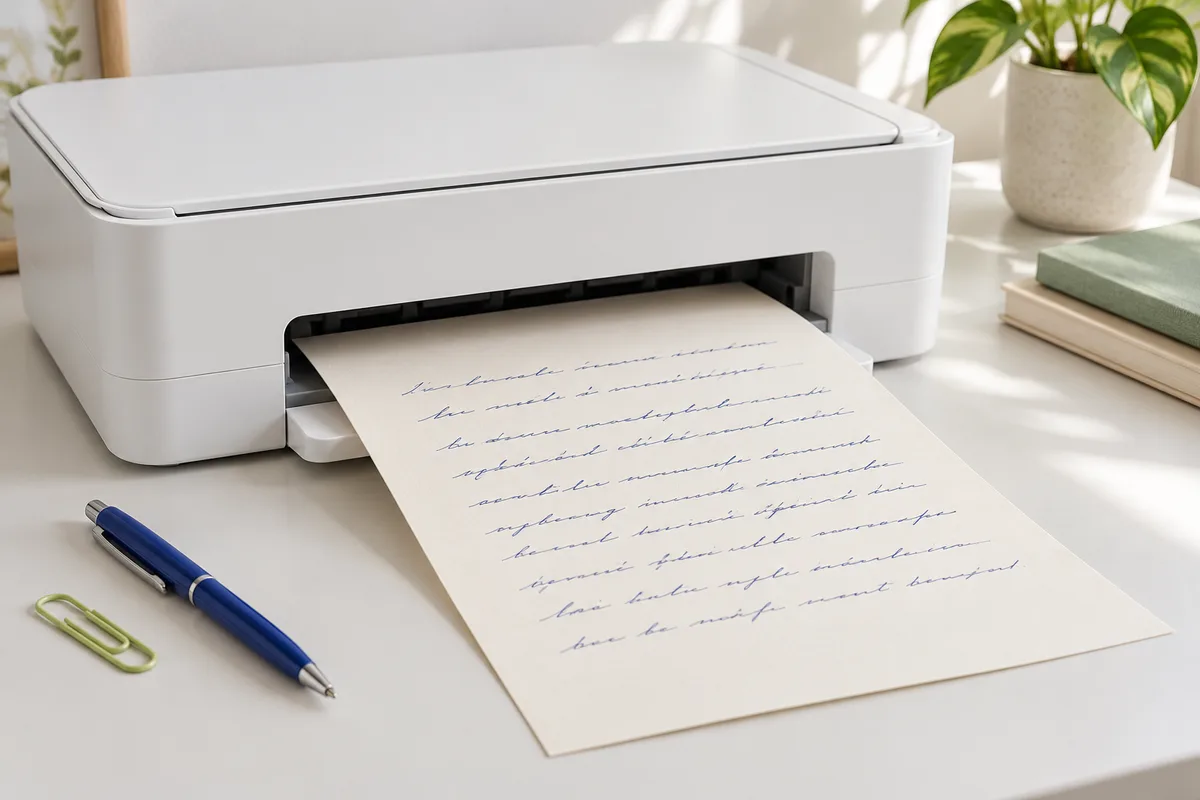
A page can look comfortable on screen and still arrive from the printer with a clipped sentence or a missing paper line. The final preview is where you catch those small mismatches. Use this checklist for study notes, personal letters or any handwritten-style page you want to keep as a printed copy or a complete PDF.
Before exporting: check the words and the page count
Read the text once for meaning before looking at typography. Check names, dates, numbers and any quotation against its source. Then move through the studio’s pages and look at the start and end of each one. A heading stranded at the bottom or an unexpectedly short final page may need a change to spacing or wording.
The text input accepts typed content, pasted text and plain TXT files, with a current limit of 12,000 characters. It does not directly import PDF or Word documents. If you began in another application, prepare the relevant text separately and keep the original document as an editable source.
Check fonts at normal reading size
Inspect accented letters, punctuation, numbers and any Chinese characters or specialist symbols in your text. A font can look consistent in a short English sample but fall back to a different family for missing characters. Choose a font with the coverage you need before exporting the final version.
Imported font files are applied locally in the browser. They are not cloud-synced, and the studio does not train handwriting from photos. Keep the original font and its license if you need to recreate the page later. If you plan to distribute or sell the result, check that the license allows that use.
Know the difference between a PNG and the complete PDF
PNG export downloads the current page as an image. That is useful for a single note or a page shared in a message. Confirm the selected page before exporting, and repeat the process for other pages you need as images.
For a complete paginated document, use the all-page browser print flow. In the browser’s print dialog, choose Save as PDF if that destination is available. Inspect the preview and confirm that every expected page is included. The file is produced through your browser’s print system; this is not a server-generated PDF conversion service.
Match paper size, margins and scale
Select the paper you actually intend to use. A4 and US Letter have different proportions, so choosing the wrong size can change the layout or crop an edge. Start with the default print scale, then inspect all four edges. If anything is cut off, adjust the scale or margins and check the text again at a readable size.
Many home printers cannot print to the very edge. Leave comfortable space around important text, and more space on the side you will bind or punch. Avoid solving a crowded page by making the writing tiny; split the content or reduce unnecessary wording instead.
Review browser print extras
Enable background graphics when you want paper colors or ruled lines to appear. Turn browser headers and footers off if you do not want a URL and date on the sheet. The names and locations of these settings vary by browser and operating system, so use the preview rather than relying on a remembered setting.
Print one test sheet before a larger batch. Check contrast in the room where the page will be read. Dark blue or charcoal usually remains clearer than a pale decorative ink. For more layout advice, open the printing guide.
Keep a version you can edit later
Save both your original text and the finished export. Local browser drafts do not sync to the cloud, and clearing site data may remove them. A PDF is useful for keeping the final appearance; a plain-text copy is useful for making changes. Start your next page with the blank template, or browse the template library for a layout that fits your project.