How to Add a Handwritten Signature in Gmail
Create a transparent handwritten signature for Gmail, add it to your footer, set defaults, and fix missing or oversized signature images.
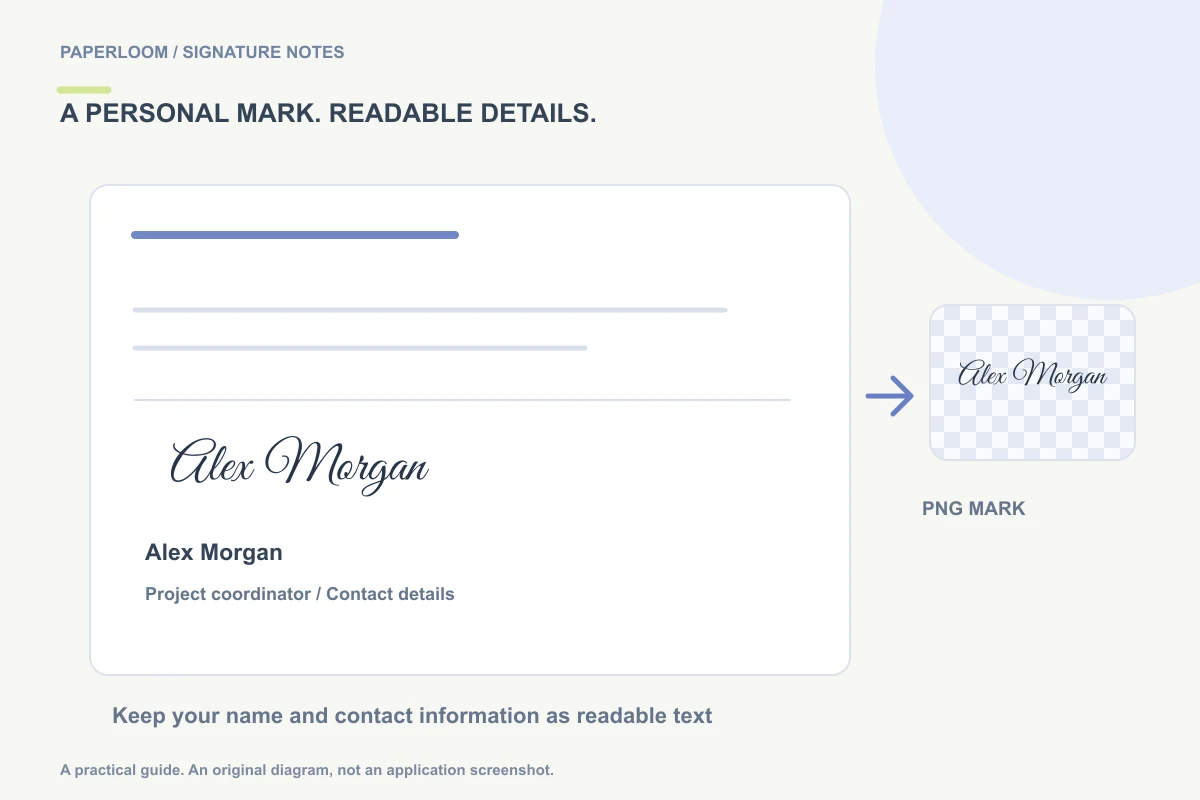
A handwritten Gmail signature is usually an image inside an email footer. Create the mark as a transparent PNG, insert it in Gmail's signature settings on a computer, and keep your typed name and contact details beside or beneath it. The image gives the footer a personal appearance; the text keeps essential information readable if images are not displayed.
This article covers Gmail in a desktop browser. A phone's Gmail signature settings are a separate interface, so check messages sent from each device rather than assuming one setup automatically covers every app.
Create a mark that fits an email
Start with the email signature generator. Choose a handwritten-style name, draw your own signature, or use a cleaned photo. Keep the design compact: wide underlines and very pale ink are harder to use in a short email footer.
Prepare a short text block containing your name, role and one or two useful contact links. An example for a fictional sender might be “Alex Morgan · Project coordinator” followed by a website. Avoid turning the whole footer into a single image; recipients should still be able to select and read the contact text.
Download the signature as PNG. You can also try the tool's formatted-footer copy action, but email editors may remove embedded images or alter formatting. The PNG is the practical fallback when a pasted footer does not survive.
Add it in Gmail settings
On a computer, open Gmail's settings, enter the full settings page and find Signature under General. Create or select a signature, add your text, and use the editor's image control to insert your PNG through an available source option. Save the settings when finished. Google's signature setup instructions describe this editor and its default-signature options.
Set defaults deliberately for new messages and for replies or forwards. A full introduction can make sense on a new message; a shorter footer often works better in a long reply chain. If you use more than one sending address, check the selected address and its signature settings.
Size for the message, not the source file
Inspect the footer in an actual draft. A high-resolution source does not need to appear at its original width. Resize the image with the editor's available size options, then check that thin letters remain visible.
Use a modest layout with enough space between the mark and the contact text. View it on both a wide window and a narrow phone screen. A transparent image can blend into a white background, but dark ink may be hard to see against some dark-mode treatments; verify the result instead of relying on the preview alone.
Fix missing or broken images
If copying the formatted footer loses the image, insert the PNG directly in Gmail rather than repeatedly pasting the same HTML. If the image appears broken, check which source was used. A local file path in pasted markup cannot act as a public image URL for a recipient.
For externally hosted images, availability and permissions matter. Do not make a private document or an entire folder public just to display a footer graphic. Use the supported upload method when available, or follow your organization's approved image-hosting setup. Google's image troubleshooting guide explains the different image-source methods.
If the footer does not appear on a reply, inspect the reply default and any collapsed or trimmed content. Also check whether you are composing in a mode that removes rich formatting. Keep a plain-text footer for situations in which images are intentionally unavailable.
Check before making it your default
Save the settings, create a fresh draft, and confirm the correct signature is selected. A test message you send to an address you control can reveal display differences between the editor and the received email. Review your typed contact information, image size and links before using the footer broadly.
For another mail client, see adding a signature in Outlook. If your image has an unwanted rectangle, follow the transparent signature guide. An email footer image personalizes a message; it does not digitally sign or encrypt the email.