How to Add a Signature in Outlook with an Image
Set up a handwritten signature image in new Outlook, Outlook on the web or classic Outlook for Windows, and check the right account and defaults.
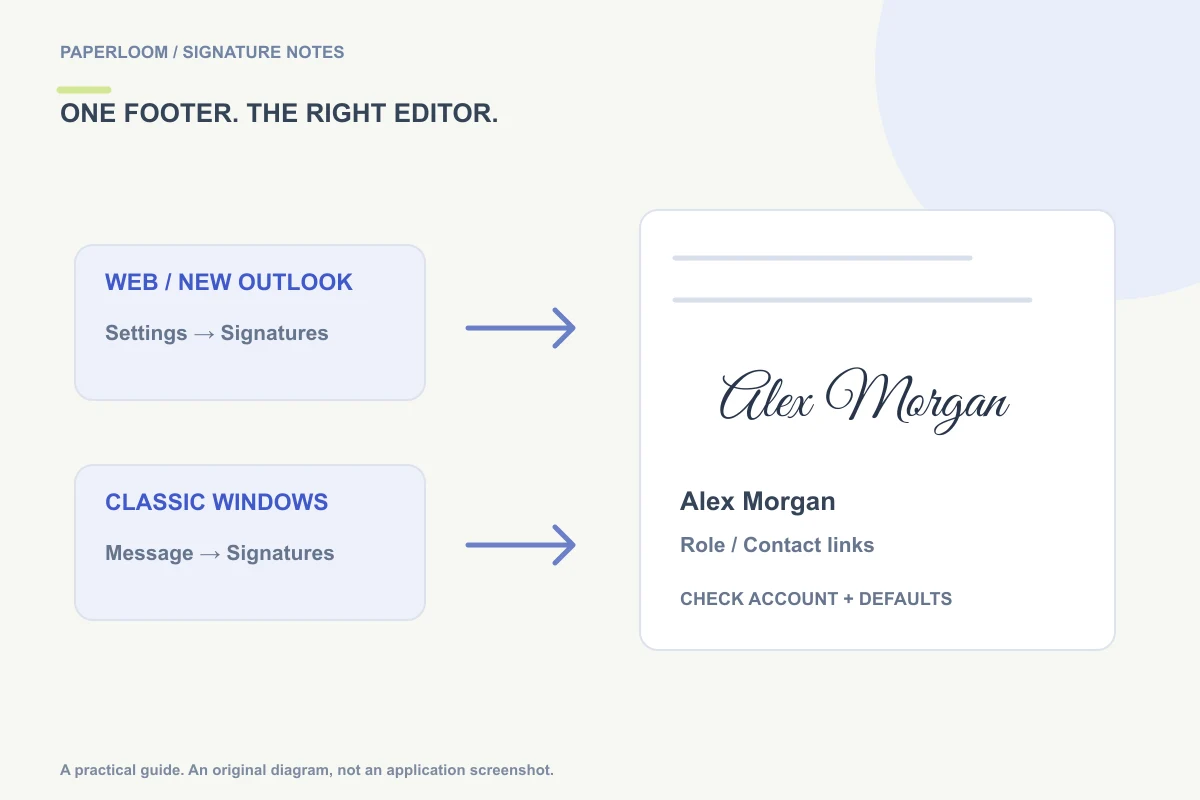
To add a signature in Outlook, first identify which Outlook you use. New Outlook and the current web interface put signature controls in Settings. Classic Outlook for Windows uses a signature editor accessible from a message. After creating a footer, choose the correct account and decide whether it should appear on new messages, replies or both.
For a handwritten appearance, insert a transparent PNG alongside editable text. A handwritten mark can complement your name and role, but it should not make the entire contact block dependent on image display.
Prepare the footer once
Use the email signature generator to create your mark and a short contact block. Keep one clear version of your name, a role if relevant, and useful links. A fictional “Alex Morgan · Client services” footer does not need a large collection of decorative badges to be useful.
Download the PNG before changing Outlook settings. If copying the formatted footer preserves the layout and image, that can save time. If Outlook strips the embedded image, use the downloaded PNG with the editor's image control instead. Keep the original image for future edits.
New Outlook and Outlook on the web
In the current interface, open Settings → Accounts → Signatures. Add a named signature, enter the text, and insert the image using the editor's available controls. Set the defaults for new messages and for replies or forwards, then save. Microsoft describes these settings in its current Outlook signature guide.
If your organization is on a different interface, the labels may differ. Search settings for “signature” rather than assuming a tutorial for another version exactly matches your screen. A managed company signature may also limit what you can change locally.
Classic Outlook for Windows
Open a new message and use Signature → Signatures to open the editor. Create a named signature, add or paste the footer, and insert the PNG if necessary. Select the intended email account and default signatures before saving. Microsoft's classic Outlook template walkthrough documents the signature editor and default selection.
These are desktop Windows instructions, not a universal path for every Outlook app. Mac and mobile editions have their own interfaces. If the menu is missing, identify the edition first rather than changing unrelated message settings.
Keep the image small enough to belong in an email
Resize the mark proportionally and leave separation from contact text. An image that looks comfortably sized on a large monitor can dominate a phone screen. Avoid very pale strokes and oversized flourishes, especially if the footer needs to survive different background treatments.
Keep your name as text even when the image also spells it out. Recipients can then read the name when images are disabled. Recheck any copied website or phone link: attractive formatting is less useful than a contact method that works.
Troubleshoot account and display problems
The wrong footer appears. Check the sending account and the default for that message type. Different accounts can use different signatures.
The signature is missing in a reply. Review the reply/forward default. A new-message default alone may not cover replies.
The image disappeared after pasting. Insert the original PNG directly. Pasted HTML that references a temporary browser image or local file is not a reliable reusable email asset.
The picture has a white box. Confirm it is actually transparent. The background cleanup guide explains how to prepare the file.
Verify the saved result
Create a fresh draft after saving and confirm which signature Outlook inserts. If you send yourself a test, inspect the received message on another layout or device as well. Desktop, web and mobile behavior should be checked separately rather than assumed to sync identically.
For Gmail, use the Gmail handwritten signature walkthrough. For file-format choices, see PNG versus SVG versus JPG. A visual footer does not replace Outlook's separate message-signing or encryption features.