How to Add a Signature in Google Docs
Add a handwritten signature PNG to Google Docs, choose the right image layout, understand pageless limits, and check the PDF you share.
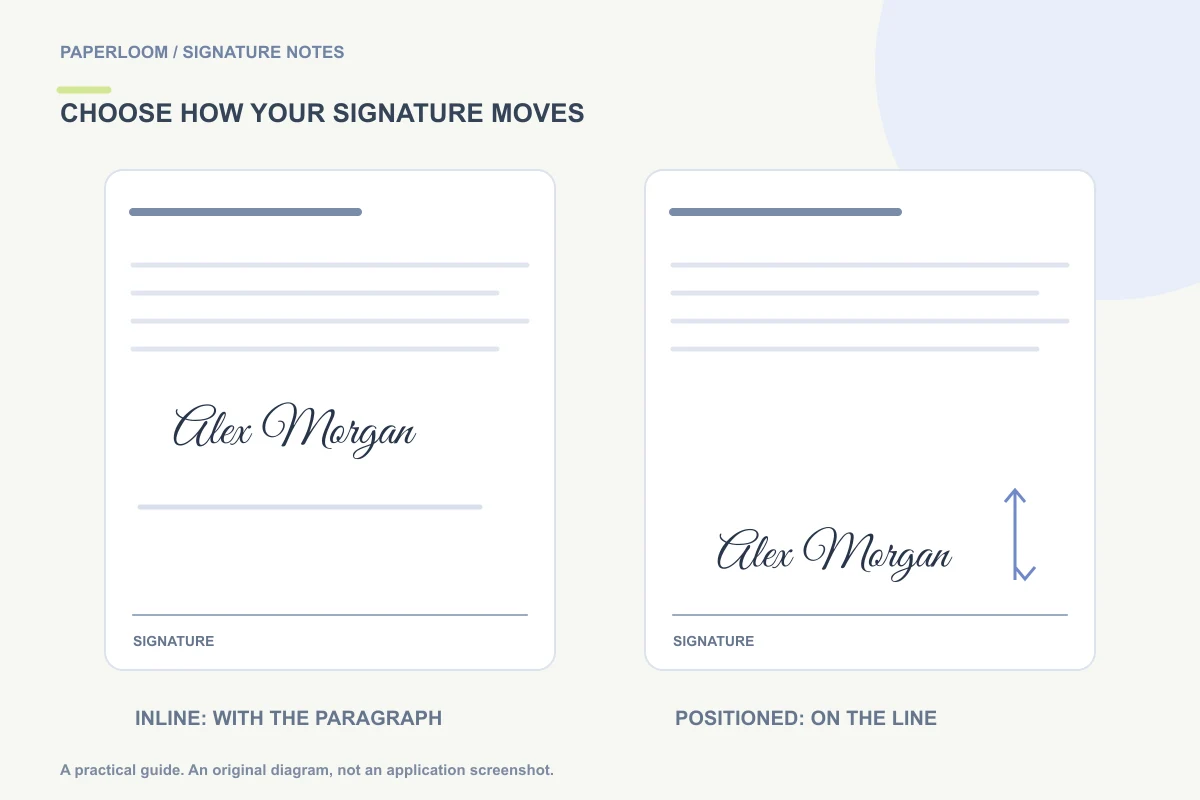
You can add a signature in Google Docs by inserting a transparent PNG and adjusting its image layout. Use an inline image when it should move with the paragraph, or a positioning option when it needs to sit on a specific line. Before troubleshooting a missing layout control, check whether the document uses pages or pageless format.
Adding an image is useful for an ordinary visible sign-off. It does not create a signing request, verify the signer, or turn a shared document into a certificate-based signing workflow.
Prepare the image before opening the document
Use the signature generator to type a name, draw a mark or clean a signature photo. Download a transparent PNG, then open it once to check that the complete signature is present. A long flourish that looks attractive in a preview can become cramped beside a printed name, so size the design for the actual document.
Keep your original file. If a shared document is later copied, renamed or reorganized, a separate signature image is easier to reuse than a screenshot cropped from an old PDF. Store it somewhere you control, especially if the computer is shared.
Insert it as an image
Open the document and use Insert → Image → Upload from computer to choose your PNG. Google also documents other image-source options in its image insertion and positioning guide. Insert only the file you intend to share: once a signature image is in a shared document, people with access to that document can see it.
Select the image and resize it using a corner handle. A useful initial size is simply one that fits the existing signature line without touching surrounding text. There is no universal signature width that works for every document, name or template.
Decide between inline and positioned placement
An inline image behaves like a character in a paragraph. It is often the easiest choice for a sign-off below the last paragraph. A positioned image can be more convenient for a pre-designed form, but it needs checking after edits elsewhere in the document.
Google Docs offers several image layout choices in pages format. Some wrapping and position controls are unavailable in pageless documents. If you cannot find the control you expected, check the document format before repeatedly re-inserting the image. Switch to a paged layout when your goal is a fixed printable form, then review the resulting page breaks.
Keep a signature block together
Treat the signature, printed name and date as one small block. Leave enough room for the image's tall letters and descending strokes. Avoid pushing it into place with a long chain of spaces: those spaces can reflow when a collaborator changes fonts or margins.
For a simple letter, place the image on its own line and keep the printed name beneath it. For a form, complete the text fields first, then position the image. The less surrounding content changes afterward, the easier the final review becomes.
Troubleshoot the finished result
The image has a white rectangle. Check the PNG itself. A PNG can contain an opaque white background; the extension alone does not guarantee transparency. Follow the background removal guide if needed.
The signature moved after editing. Revisit the layout choice and the paragraph it is associated with. Review the final exported PDF rather than relying only on the editing canvas.
The signature is too small to read. Simplify decorative details or choose a less compressed name form. Making thin handwriting narrower usually makes it harder to read.
Export and inspect your copy
When a PDF is required, download the completed document as a PDF and open that file separately. Check every signature area, the printed name, any date, and the last page. Collaborators may still edit the online document later, so be clear about which exported version is the one you are sending.
If you received a PDF rather than an editable Google Doc, use Sign PDF without converting it. For an editable Microsoft document, see adding a signature in Word.