How to Add a Handwritten Signature in Word
Insert a transparent signature PNG in Word, position it on a line, fix wrapping problems, and check the finished PDF before sharing your document.
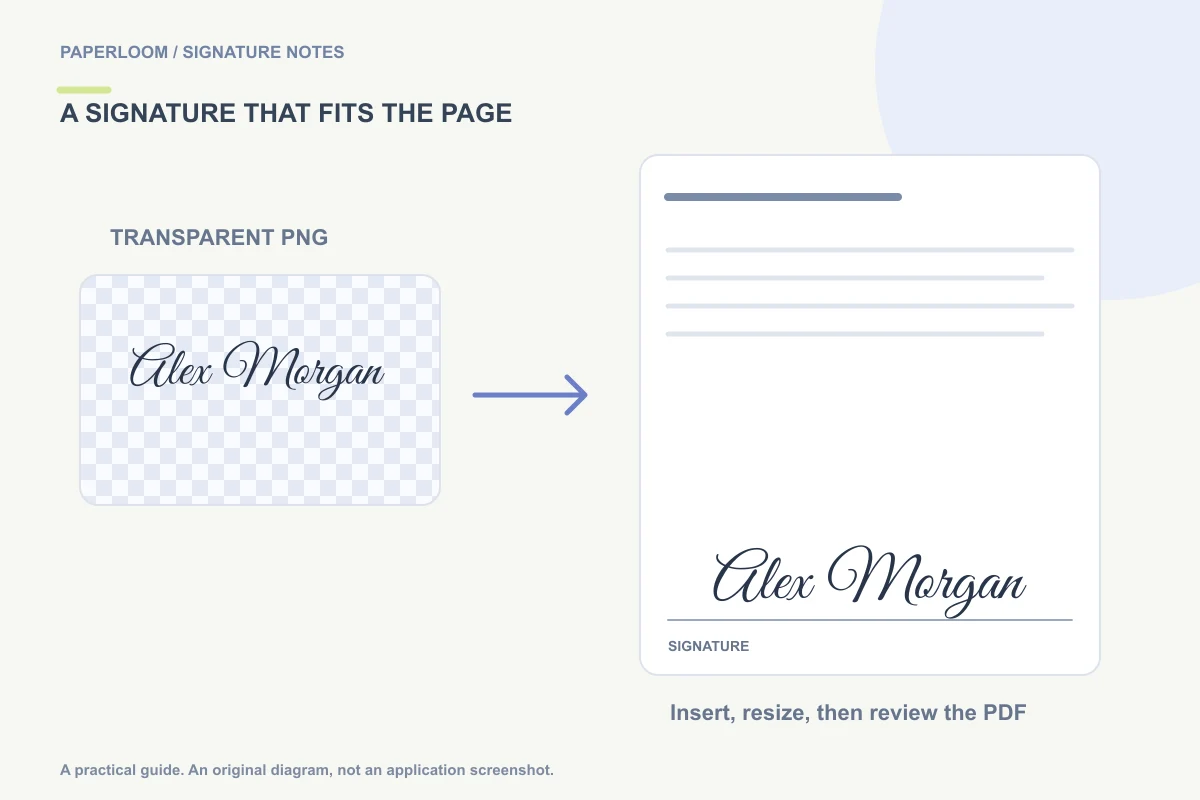
To add a handwritten signature in Word, insert a signature image, resize it from a corner, and position it beside the signature line. A transparent PNG is a useful starting point because it leaves the document background visible around the ink. You do not need to print and scan the entire document just to place an image.
This guide covers a visible picture of your signature. Word's certificate-based signing features are a separate workflow. If someone has sent a signing invitation or specified a particular signing method, follow that process instead.
1. Prepare a clean signature image
Open the signature generator and type your name, draw your own mark, or use Upload to clean a photo of a signature on light paper. For a personal mark you already use, drawing or cleaning your own writing preserves more of its character than choosing a font-based variation.
Choose dark ink, inspect the thin strokes, and download PNG. Keep the whole first and last stroke inside the image. Avoid taking a screenshot of the preview: a screenshot can include the checkerboard used to represent transparency. The downloaded PNG contains the signature itself.
For example, if Alex Morgan needs to sign a one-page permission note, a compact full-name signature usually fits better than a long underline. The right design is the one that stays readable at the size of the actual line.
2. Insert the PNG in Word
In desktop Word, use Insert → Pictures and choose the image on your device. Microsoft documents picture insertion as a way to add a handwritten signature in its Word signature guide. The exact picture-source labels vary between Windows, Mac and browser versions.
Select the inserted image and use a corner handle to resize it proportionally. Start small enough to fit the available space, then inspect the document at normal reading size. Stretching only the side of the image makes the signature unnaturally wide; stretching only the top makes it too tall.
3. Choose a layout that stays in place
If the signature should behave like part of a paragraph, an inline image is easier to keep with the surrounding text. If it needs to sit over a pre-existing line, use the available picture wrapping or positioning controls. Desktop Word commonly offers an In Front of Text option for freely positioning a picture.
Free positioning needs a final check after you edit earlier paragraphs. A change above the signature can move the line or the image's anchor. Finish the wording before fine-tuning the placement, and avoid covering a printed name, date or nearby sentence.
4. Fix the most common problems
- A white box covers the line. The file probably has a white background. Generate a new transparent PNG rather than simply renaming a JPG.
- The signature looks soft. Re-export from the original artwork and display it smaller. Enlarging a small image cannot recover missing detail.
- The image jumps as you type. Revisit its wrapping and anchor settings, or place it inline if exact floating placement is unnecessary.
- A flourish is missing. Check the image before inserting it. Word cannot restore a stroke already cropped out of the source.
The transparent-background guide explains the white-box problem in more detail.
5. Review the final file
Save your editable Word document, then export a PDF if that is the delivery format the recipient requested. Reopen the PDF and check the signature's position, page count and date. Keep the editable original separately so a later wording change does not require rebuilding the entire document.
If the file you received is already a PDF, use Sign PDF directly instead of converting it to Word and potentially changing its layout. The PDF signing walkthrough shows that route.
Quick questions
Can I paste the signature instead? Paperloom can copy a PNG image in supported browsers, but downloading and inserting the file gives you a clear fallback when clipboard image permissions or application support differ.
Does inserting the picture certify the document? No. It adds a visible mark; it does not create a digital certificate or an audit trail. Confirm the recipient's requirements before choosing the workflow.