How to Sign a PDF Without Printing or Scanning
Create or import a signature, place it on a PDF, add a date and download a signed copy in your browser. Includes privacy and final-file checks.
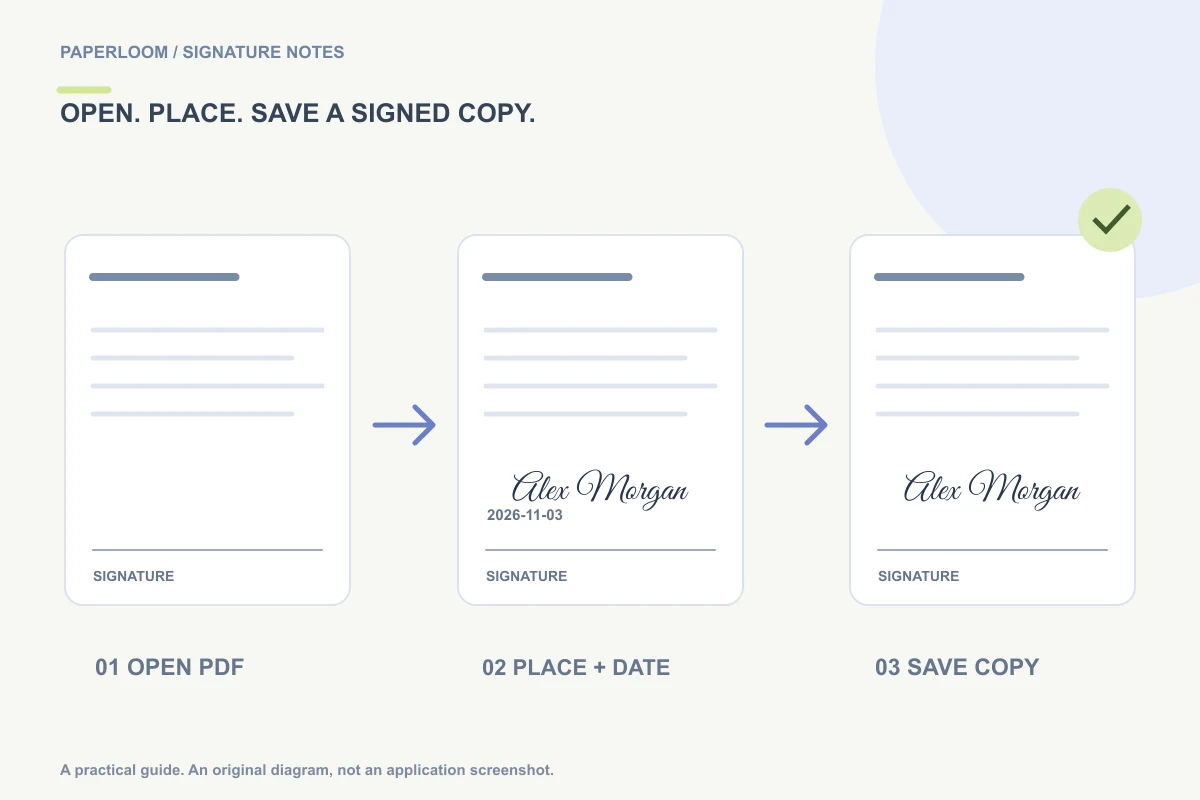
To sign a PDF without printing, open the file in a tool that can place a signature image, position the mark, and save a new PDF. You can draw a signature, create a handwritten-style variation, or use an existing transparent PNG. The important final step is opening the downloaded copy to confirm what the recipient will receive.
Paperloom's Sign PDF tool performs the document editing in your browser. It does not upload your PDF to a signing server. You still need a connection to load the website and its resources; browser-local processing is not a promise that every feature will remain available offline.
Before you start
Check the recipient's instructions. A visible signature image is different from a workflow that verifies identity, records consent, sends signing invitations or attaches a digital certificate. Use the requested service if one is specified. This guide is about placing a visible mark, not certifying a document's enforceability.
Keep an untouched copy of the PDF. Paperloom currently accepts unencrypted PDFs up to 25 MB. A password-protected file must be handled through an authorized workflow that supports it; the tool does not remove document protections.
1. Create or choose your signature
Start on the signature generator. Type an English name to compare variations, use Draw for your own handwriting, or clean a photo under Upload. Select a result and inspect it at a realistic size. Dark ink and a modest flourish are often easier to place than very thin lettering with a wide underline.
Choose Sign a PDF with this to continue with the selected signature. The handoff uses storage in the current browser, so use the same browser rather than moving to a private window or another device. Alternatively, keep a transparent PNG and import it in the PDF editor.
2. Open the document and choose a page
Use Open a PDF on the signing page and select the file. Navigate to the page that actually needs the signature. Read the surrounding labels before placing anything: a name field, an initials field and a witness line are not interchangeable.
If you opened the signing page directly, use Import signature PNG for an existing image. A transparent PNG preserves the paper around the signature. A photo with an opaque background can cover lines or form text, so clean it before inserting it.
3. Place, resize and date the mark
Select Place signature, then drag the mark into the intended space. Adjust its width while keeping the surrounding text visible. On a keyboard, a focused placement can also be moved with arrow keys.
Enable Add date if the document calls for one, and check the actual date value and required format. Do not assume the date automatically satisfies every field's requirements. If several pages need signatures, navigate between pages and add the required placements individually.
For example, a three-page approval form may have one signature line on page three and initials boxes on pages one and two. Read each label and use the appropriate mark; do not stamp the same full signature everywhere merely because it fits.
4. Download and review the signed copy
Choose Download signed PDF. Open the downloaded file in a PDF viewer outside the editing page. Check all signed pages, the date, any rotated pages, and whether small strokes remain legible. Confirm the original page count and important text are still present.
Use a clear filename such as approval-form-signed.pdf, then attach that file rather than the untouched original. Keep both copies until the recipient confirms which version they need. Saving the result is your responsibility; do not rely on an open browser tab as your only copy.
When to use another route
An iPhone offers a built-in route described in signing PDFs on iPhone. A Mac can use Preview or a signature PNG. If your signature has a white box, fix the image first with the transparent-background guide.
Paperloom adds signature images and optional date text. It is not a general PDF text editor, protection-removal tool or certificate-signing service.