PNG vs SVG vs JPG: Best Format for a Signature
Choose a signature file format for Word, PDFs, email or design work. Compare transparency, vector scaling, image quality and white-background exports.
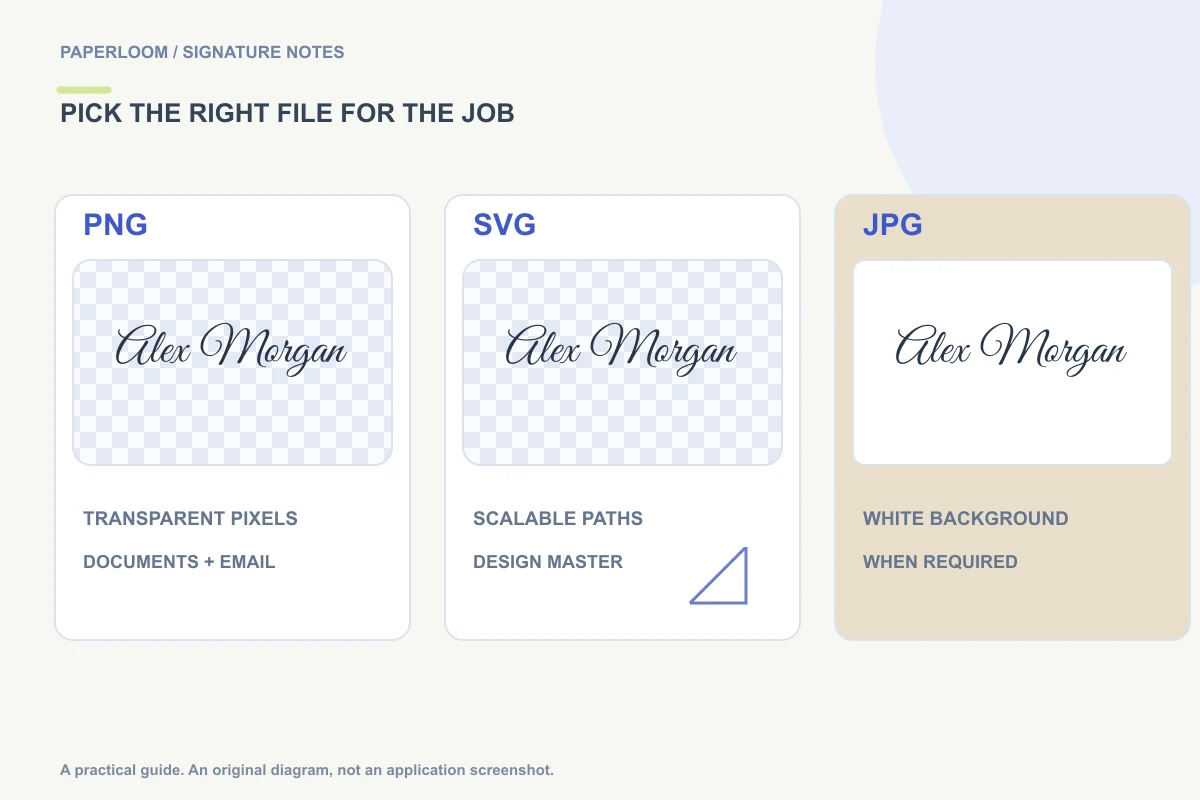
For most document and email tasks, start with a transparent PNG signature. Keep SVG when you need editable vector artwork or flexible scaling in software that supports it. Choose JPG only when the destination needs a flat image and a white background is acceptable.
The right format depends on where the signature is going. A file that looks sharp in a browser may not be accepted by a PDF importer or email editor. Here is how to choose without repeatedly converting the same mark.
PNG: the everyday document option
PNG stores a grid of pixels and can include an alpha channel for transparency. That makes it useful when a signature should sit over a document line without an opaque rectangle around the handwriting. In Paperloom, PNG is also the signature-image format accepted by the PDF signing tool.
The generator renders its PNG export at twice the artwork's selected dimensions. That gives you room to display it smaller in a document. It does not make it infinitely scalable: enlarging a small raster image far beyond its original dimensions will still soften the edges.
Use PNG for a signature in Word, Google Docs, a PDF image placement or an email editor that accepts images. Keep the original downloaded file rather than a screenshot of the preview. A checkerboard belongs in the preview, not in the final image.
SVG: paths rather than a fixed pixel grid
SVG describes shapes as vectors. Paperloom exports the generated signature as paths, so the result does not require the recipient to have the original handwriting font installed. You can scale those paths in a compatible design tool without starting from a low-resolution pixel grid.
That advantage does not mean every application will accept SVG. Image importers and email systems have different format restrictions. If a destination rejects SVG, export a PNG from the original artwork instead of treating the rejection as a problem with the signature itself.
SVG is a useful master for design work and later raster exports. It is not a record of the signer's identity or consent. A vector file also does not necessarily contain the original order in which a pen moved; typed signatures in this tool come from transformed letter outlines.
JPG: a flat image with a background
JPG does not preserve an alpha channel. Paperloom fills the background white when exporting JPG. That can be fine on a white canvas, but the rectangle becomes obvious on colored stationery, over a printed line or in a differently colored email background.
JPEG compression can also introduce visible artifacts around thin, high-contrast strokes. Repeatedly saving and recompressing the file may make those edges less clean. If the destination accepts PNG, there is usually little reason to convert a transparent signature to JPG first.
Use JPG when a specific destination requires it and you have checked the background. Do not rename a JPG file to end in .png: that changes neither its encoding nor its background pixels.
A practical two-file workflow
Create a mark in the signature generator, inspect it at the intended display size, and keep a PNG for immediate use. If you may need to adapt it in a design application, keep the SVG alongside it. Give the files clear names so you can distinguish a full-name version from initials or a blue-ink version.
For a signature that will appear about 250 pixels wide in an email, a larger source PNG can be displayed smaller. Treat that as a starting example, not a fixed standard. A long surname, tall flourish or surrounding contact details may call for a different width.
Troubleshooting by symptom
- White rectangle: inspect transparency or check whether JPG was exported. See removing a signature background.
- Soft edges: return to the source artwork, export again, and avoid enlarging a tiny image.
- Unsupported file: choose an accepted format; Paperloom's PDF importer takes PNG signatures.
- Font changes elsewhere: a path-based SVG avoids a dependency on the installed font, while a screenshot or text-based file may behave differently.
For placement instructions, continue with signatures in Word or handwritten Gmail signatures. Keep the editable source and the finished document as separate files.