How to Sign a PDF on Mac with Preview or a PNG
Use Preview to create and place a signature on Mac, or import a transparent PNG in a browser. Compare the routes and check the saved PDF.
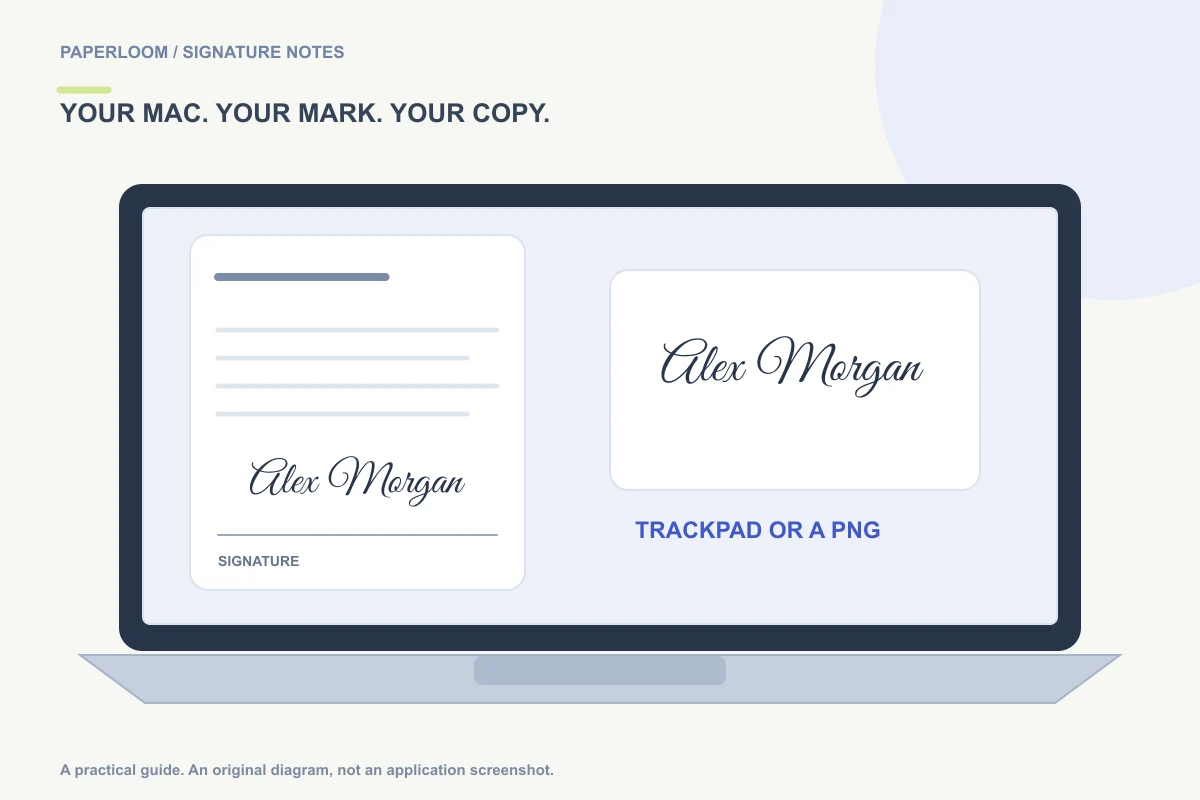
On a Mac, Preview can create a signature and place it on a PDF. If you already have a transparent PNG or want a signature you can also use in Word and email, a browser-based PDF image workflow is another option. Choose the route that fits your source file, then save and inspect a separate completed copy.
You do not need to print a PDF simply because it contains a signature line. You do need to follow the recipient's requirements when they specify a signing service, identity check or certificate workflow.
Use Preview for a signature created on the Mac
Open the PDF in Preview and show the Markup toolbar if it is hidden. Use the Sign control to choose an existing signature or create one. Preview offers capture options such as a trackpad, camera or compatible nearby Apple device. Select the mark, place it and adjust its size. Apple's Preview signature guide describes the available methods and requirements.
A trackpad is convenient when you want to create the mark directly. A camera can be useful for a signature already written on paper. Inspect the result before placing it: the goal is a complete, readable mark, not just a recognizable first letter.
Work on a copy if you want to keep the untouched original. After saving, reopen the completed PDF and check the actual page rather than relying only on the signature selection preview.
Use a transparent PNG for a reusable mark
A PNG workflow makes sense when the same visual signature also belongs in documents or an email footer. Create it once in the signature generator, then keep the downloaded image for other applications.
For the PDF itself:
- Open Sign PDF in your browser and choose Open a PDF.
- Select an unencrypted PDF within the current 25 MB limit.
- Use Import signature PNG if you have an image, or continue from a selected signature in the generator.
- Place the signature on the appropriate page and adjust its width.
- Add and review a date when the document requires one.
- Download the signed PDF and open the saved file in a separate viewer.
The browser tool processes the PDF on the device. It is not a remote signing inbox and does not send invitations to other signers. It also does not remove password protections or edit arbitrary text in the PDF.
Choose based on what you already have
If the PDF is already open in Preview and a saved signature fits the task, staying there avoids an unnecessary file transfer. If you have a clean PNG from another workflow, importing that image can preserve its exact appearance without trying to reproduce it on a trackpad.
If you want to explore handwriting-inspired lettering first, start with the generator. A typed variation is a visual design made from adjusted font outlines, not a model of how your hand naturally moves. Use drawing or a clean photo if retaining your own pen habits matters more than comparing lettering styles.
Review page position and the output file
Zoom out after fine placement. Check that the mark belongs to the correct label, the date is present only where intended, and no nearby text is covered. A signature that looks centered at a high zoom can sit awkwardly in the full-page layout.
For multi-page files, review each required signature area. Reopen the final download and compare the page count with the original. Use a distinct filename so that a mail attachment picker does not make the untouched and signed versions easy to confuse.
If a thin stroke is hard to read, improve the source image or choose a stronger design. Enlarging a small raster image does not add detail. The format comparison explains when a PNG or vector master is useful.
Keep the next step simple
Send the completed file through the channel the recipient requested. Keep the original and your signed copy separately. A visible image placement does not by itself create a digital certificate, so use an appropriate signing service when that is required.
For mobile steps, see signing a PDF on iPhone. For background problems before importing an image, see making a signature transparent.